
.png)
When it comes to digital marketing, you could have the most compelling, beautiful content the universe has ever seen, and it might not matter one bit. It might not do a thing for you.
Because for that content to do any good, the universe has to actually see it.
Technical SEO is the behind-the-scenes workhorse that makes sure search engines can find your content and show it to users. AI search tools now pull answers from the web too, and the same foundation decides whether they can find and cite your pages. But technical SEO can get complex, and a few small mistakes can tank your rankings and make your content all but invisible.
Audit tools will flag hundreds of potential problems, and most of them won't move performance. Focus on the issues that affect crawling, indexing, and user experience, and save the minor fixes for later.
These are the seven most common technical SEO issues we see trip up brands, and how to fix each one.
| Issue | Where To Spot It | First Fix |
|---|---|---|
| Indexing Problems | Google Search Console Page indexing report | Fix the listed reason, then request indexing |
| Slow Page Speed | Core Web Vitals report, PageSpeed Insights | Compress images and lazy-load below the fold |
| Link Problems | Screaming Frog crawl | Fix broken links and links that point to redirects |
| Poor Mobile Experience | Lighthouse, real phones | Fix small text, crowded tap targets, and missing viewport |
| Broken Pages | Screaming Frog, Page indexing report | Redirect moved pages and remove dead links |
| HTTPS Issues | Screaming Frog | Install an SSL certificate and redirect HTTP to HTTPS |
| Duplicate Content | Performance report (pages sharing queries) | 301 duplicates or set canonical tags |
1. Indexing the website
Indexing is part of how search engines like Google and Bing identify individual pages on a website and understand what those pages are about.
Indexing is vital because a page that isn't indexed won't appear in search results, period. No matter how compelling the copy or how fine-tuned the content SEO strategy, that page just isn't going to rank.
When all goes well, indexing happens automatically. You publish a new page, a Google bot eventually crawls it, analyzes it, and indexes it. If the change is urgent (or the bots aren't finding it quickly enough), you can also manually request indexing in Google Search Console and push indexing to Bing via IndexNow.
Sometimes a page (or lots of pages within a domain) still won't get indexed, even after you take those manual steps. For marketers without technical SEO experience (or the bandwidth to slow down and solve the problem), this gets frustrating fast.
The cause often isn't obvious, and Google doesn't give instant feedback when you resubmit a page. You might end up guessing, making small change after small change as you try to find whatever the index is objecting to.
Finding the cause of indexing issues can feel like searching for a needle in a haystack:
- Your theme might slow down load times, so Google "discovers" your page, sees the quality issue, and doesn't index it.
- Your source code or robots.txt file could include exclusions.
- Your XML sitemap might have errors or be out of date, confusing the bots.
- Pages you want indexed could carry a noindex tag, telling the bots to skip them on purpose.
Diagnosing any of these takes some technical skill and time, plus more time to explain the fix to your developers and get it done.
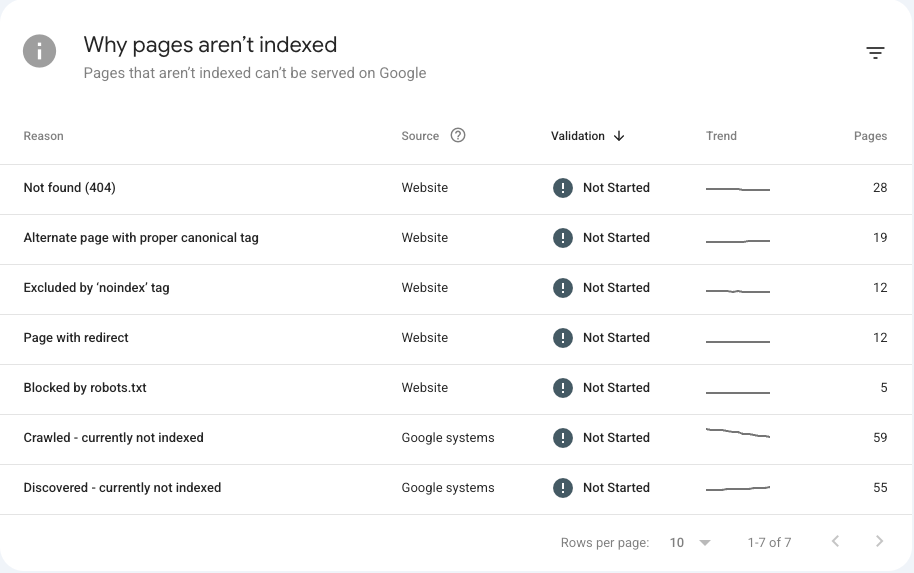
Start with the Page indexing report in Google Search Console. It lists every URL Google knows about that isn't indexed, along with the reason (for example, "Crawled - currently not indexed" or "Excluded by 'noindex' tag"). Google built its Search Console reports around the issues it says affect performance, so they're the best place to begin.
How to avoid indexing issues
The simplest way to avoid indexing issues is to create and maintain a sitemap that search engines can read. When crawlers can't easily see how your site is structured, they miss important details and skip some pages.
Larger sites need a little more care. Split a large XML sitemap into multiple files by section, and use robots.txt to block low-value pages like internal search results. Crawlers then spend their time on the pages you actually want to rank.
While you're in robots.txt, check that it isn't blocking AI crawlers. ChatGPT, Claude, and Perplexity each use their own search crawlers (OAI-SearchBot, Claude-SearchBot, and PerplexityBot). If your robots.txt blocks them, those tools can't cite your pages in their answers. The AI companies run separate crawlers for model training (like GPTBot and ClaudeBot), and whether to allow those is a business decision you can make on its own.
If your robots.txt has no Disallow rules (like ours), AI search crawlers can already reach your site. If you block bots more broadly, add explicit rules for the search crawlers so they can still cite you:
User-agent: OAI-SearchBot
Allow: /

User-agent: Claude-SearchBot
Allow: /

User-agent: PerplexityBot
Allow: /
How to fix improper indexing
The best way to fix improper indexing is to look at everything, then look again, checking for issues like:
- Technical problems, such as 3XX (redirect), 4XX (page not found), and 5XX (server) errors
- Slow page load speeds
- No sitemap in your robots.txt file or Google Search Console
- Crawl depth issues
If you've hit the end of your technical SEO expertise and still haven't solved your site's indexing issues, it's time for an audit. Our guide to technical SEO audits explains what one covers.
At this stage, it's smart to partner with an agency like Ten Speed that focuses on search engine optimization, including technical SEO. We've found and solved indexability issues for dozens of clients, and we have the expertise to uncover and address indexing issues for your business. For a wider look at partners, see our roundup of the best technical SEO agencies.
2. Slow page speed and Core Web Vitals
A fast-loading website is critical to the overall user experience. For businesses driving visitors toward a conversion, every extra second of load time can cut conversion rates, lower search rankings, and raise bounce rates.
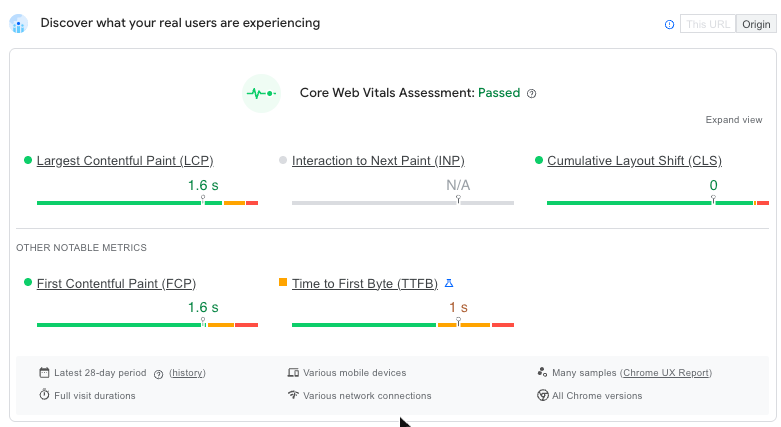
Google measures page experience with Core Web Vitals:
- Largest Contentful Paint (LCP): How long the largest image or text block on the screen takes to render
- Interaction to Next Paint (INP): How quickly the page responds when someone clicks, taps, or types
- Cumulative Layout Shift (CLS): How much the layout jumps around while the page loads
LCP is the most common culprit we see behind slow load times.
How to find page speed issues
Open the Core Web Vitals report in Google Search Console. It groups your URLs by whether they pass or fail each metric, so you can see which page templates need work. Speed is a great place to start technical optimization because fixes here often produce a bigger performance improvement.
To test a single page, run it through PageSpeed Insights or Lighthouse (both linked in the tools section below).
How to fix slow pages
Images usually account for most of a page's weight, so start there:
- Compress images and serve them in modern formats like WebP.
- Lazy-load images below the fold so they load only when a visitor scrolls near them.
- Minify your CSS and JavaScript files.
- Use browser caching for static files and a content delivery network (CDN) to serve files from servers closer to your visitors.
For LCP specifically, Google's guide to optimizing LCP walks through each cause and fix.
3. Making the most of a linking strategy
If you have experience with on-page SEO (content SEO), you already know that links matter. Maybe a lot, maybe a little (it depends on who you ask), but they do matter.
On the technical side, internal links (links to other pages on your own domain) help crawlers move through your site, while external links (backlinks) help build your site's authority.
Getting the most value out of the links in your content takes more than sprinkling a few in here and there. It requires a strategic approach and the right technical execution.
Some of the most common site-linking issues we come across are:
- Too many or not enough links
- Nofollow links used instead of dofollow links
- The same phrase (like a main keyword) hyperlinked to different resources in the same piece of content
- Broken links that affect website crawlability
- Internal links that lead to redirects
- Too much hyperlinked text (a whole sentence rather than just a term or phrase, for example)
When a website is full of link problems, search engines can get confused or read the technical problems as signs of a lower-quality site. Pages fail to get indexed, and rankings and organic traffic drop or stay lower than they should.
How to avoid link issues
Checking and double-checking links when you first create a new page is a great place to start. A typo or other minor error is easier to catch and fix during production.
You can't control what happens on other domains, so your external links will always need closer attention. But you can take several steps to avoid some types of link issues or greatly reduce their impact:
- Build a logical site structure and keep it consistent. If you don't change URLs, you won't end up with broken links and redirects.
- Add breadcrumb navigation so crawlers (and users) can see where each page sits in your site structure.
- Set most links to dofollow.
- Make sure the linked text accurately reflects the page you're linking to.
- Use unique phrases for each link.
- Choose external links to websites with high page authority (but not to competitors).
How to fix broken links
Trying to deal with link issues manually is a "what you don't know can hurt you" situation. Someone running a simple website with a handful of pages could conceivably check every link by hand.
A growing software-as-a-service (SaaS) company with dozens, if not hundreds, of pages full of links can't take that approach.
Tools can do this work for you. We recommend running a crawl in Screaming Frog both before and after you assess your internal linking strategy and make fixes.
Be prepared for that crawl to turn up a lot of results, possibly enough to feel overwhelming. Start with the issues likely to have the biggest impact, and save the minor improvements for later.
Focus on the pages meant to drive revenue, since they're worth more in search than other content (like company updates, product launches, and team spotlights).
4. Maintaining the user experience
Creating a consistent experience across devices and browsers is another source of technical SEO problems.
More web traffic now comes from mobile devices (smartphones and tablets) than from desktops. That's why Google uses mobile-first indexing, crawling and evaluating mobile pages to determine rankings.
These days, plenty of content management systems (CMSs) automatically create responsive pages. Still, building content that actually works on every screen is especially hard in SaaS SEO, where the products and the problems they solve are more complex.
For example, a company with a detailed desktop-only web app will have a harder time designing responsive content. Getting a product screenshot that displays well and stays legible on a phone takes real work.
Common user experience (UX) issues here include:
- Broken, cluttered, or illogical navigation
- Menus that can't be fully viewed on small screens
- Oversized screenshots or images that either break mobile formatting or shrink down until they're illegible
- Pricing pages that don't actually include pricing
How to avoid a poor user experience
Most companies will benefit from a CMS that automatically creates responsive pages. Look for one that also gives you the flexibility to adjust the layout when the responsive version hides or obscures important information.
Also pay close attention to your site's navigation. It's the roadmap of your site (for bots and human users alike), so use clear, concise language and a logical structure.
How to fix UX issues
To start, put yourself in your customers' shoes and look at your website objectively. If you were browsing this site to make a buying decision, what impression would the design, layout, and formatting give you?
- Does the navigation make it simple to move around the site and find what you're looking for?
- Do formatting inconsistencies suggest the brand doesn't pay attention to the little details?
- Does the mobile site feel like an afterthought?
On mobile, three issues show up more than any others:
- Text too small to read
- Clickable elements too close together
- No viewport set, so the page doesn't scale to the screen
Lighthouse flags all three. After that, test on actual phones. Real devices catch touch and readability problems that browser simulations miss.
The more custom your site, the more time and work it will take to address the issues you uncover. On the other hand, when you control the site, you won't get hamstrung by a CMS that blocks granular changes.
If you reach the limit of your technical depth or bandwidth, bring in a web development partner to fix UX issues.
5. Avoiding broken pages
We've all come across the classic "404 page not found" error, and you've probably seen its second cousin, the 503 server error.
These two categories of errors (often called 4XX and 5XX, since each family includes others) are broken page and server errors. When one occurs, users can't access the page at all.
When a user (or a Google bot) can't access a page, that page won't do anything for the user journey or SEO, so it's an important issue to fix.
4XX errors occur when there's no page to load at a given URL. You can see this for yourself. Go to the address bar on this page, delete any three letters after tenspeed.io/, and press enter.
Since you submitted a URL that doesn't match any page on our site, you'll get a 404 page not found error. (Seriously, try it. Our 404 page is actually kind of fun.)
Users hit these errors by mistyping a URL, clicking a link that someone mistyped, or clicking a link to a page that was removed or moved without a redirect.
5XX errors are server errors that most often happen during an outage or when your server can't keep up with the volume of requests it's receiving.
How to identify page errors
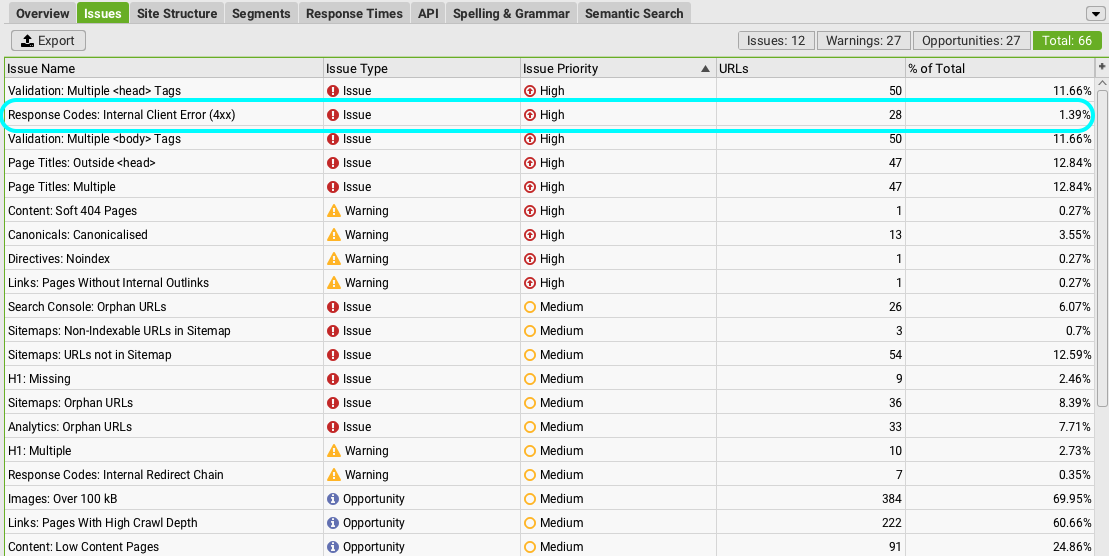
Screaming Frog can help here too (as can tools from other big SEO brands like Ahrefs and Semrush). Its reports are heavy on information, but you'll find page errors like these identified within them.
How to fix 4XX and 5XX errors
You can fix both problems. For 404 errors on pages that moved to a different URL, set up a redirect so inbound links to the old URL still reach the right destination. For pages that no longer exist, remove the link from your current content or replace it with a different one.
Planning a redesign or platform migration? Work through our strategic website migration checklist first so the move doesn't leave a trail of broken URLs.
Occasional 5XX errors probably aren't a big deal. If you see them regularly, you likely have a server problem or configuration issue to fix. At that point, talk with IT or an outside partner to figure out what needs to change.
6. Understanding HTTPS
HTTPS (hypertext transfer protocol secure) is a secure, encrypted version of HTTP. Back in the day, standard websites used HTTP, while sites with more sensitive information or functions (like banks) used HTTPS.
In recent years, the tech giants have steered everyone toward HTTPS for everything. Depending on your device, operating system, and browser, you might even get a security warning when you try to load an HTTP page.
HTTPS is a ranking factor, so skipping it can lower your spot in the search results. Worse, it can erode trust and create usability issues for potential customers.
How to avoid HTTPS issues
You'll most likely run into HTTPS problems only if your site is brand new and not built on a major CMS like WordPress, or if it's been online for many years without a substantial overhaul.
Avoid new issues by setting every new page to HTTPS, and redirect old pages to closely matched HTTPS URLs as you find them. (Crawlers like Screaming Frog can surface these pages for you.)
How to fix HTTPS problems
First, make sure you have an SSL (secure sockets layer) certificate installed on your website. If you do, your backend or CMS should have a simple switch to enable HTTPS.
Beyond that first-line fix, things get complicated for the average non-technical user. If you still have HTTPS problems, we recommend working with an expert.
7. Minimizing repetitive content
To search engines (and users), repetitive or duplicate content can look like a sign of a spammy website. It also confuses crawlers when they find multiple pages doing the same job (or even identical copies of pages).
It's easy to create duplicate content on your own site without realizing it, especially if you've been at the content SEO game for a while. Two high-quality blog posts on the same topic can end up competing for the same searches.
Duplicate content rarely triggers a Google penalty, which is a manual action against your site. More often, Google's algorithm can't tell which page to rank, so the pages split their ranking signals and both perform worse. We call this internal competition.
Your site setup can create duplicate URLs too:
- Www and non-www versions of the same page (https://yourbrand.com and https://www.yourbrand.com)
- HTTP and HTTPS versions of the same page
- Campaign tracking parameters added to URLs (like ?utm_source=email)
- Session IDs in URLs and print-friendly versions of pages
How to find duplicate content
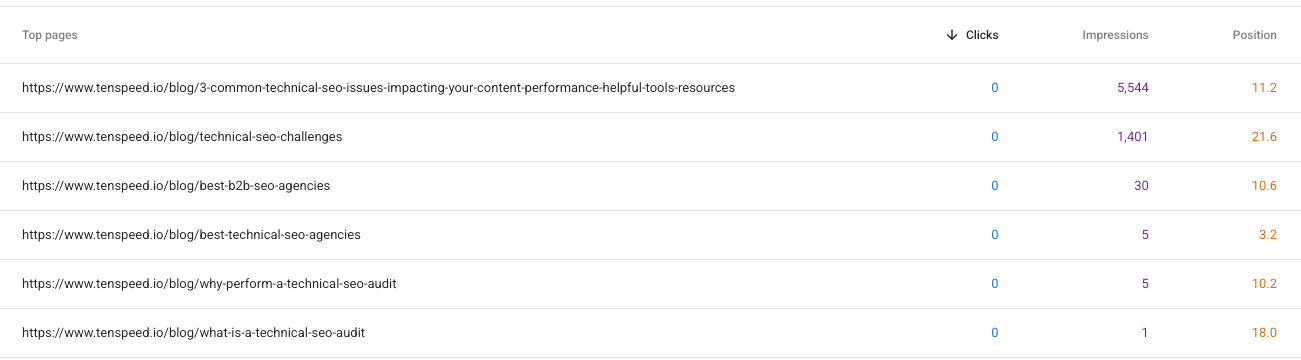
Open the Performance report in Google Search Console and look for URLs that rank for the same queries. If two pages keep trading places on the same terms, they're competing. Screaming Frog will also flag pages with near-identical copy, and Siteliner checks your whole site for duplicate content. For a deeper walkthrough, see Sitebulb's guide to duplicate content.
If you have multiple language versions of your site, crawlers won't treat them as duplicates as long as you correctly set up hreflang and your URL structure. Those signals tell search engines you're serving multiple countries or languages.
How to get rid of duplicate content
For true duplicates you don't need, 301 redirect them to the version you want to keep. When a duplicate URL has to stay live (a tracking link or a print version, for example), add a rel canonical tag pointing to the main version so Google consolidates its signals there. Google's documentation on consolidating duplicate URLs covers both options.
When two pages cover the same topic but aren't exact copies, the fix depends on the pages. You might change the focus of one page or consolidate the two into one. Our guide to content decay explains how to decide.
Want to dig deeper? Listen to our podcast episode about common technical SEO issues.
Tools to find and fix technical SEO issues
- Google Search Console: Free reports on indexing, Core Web Vitals, and the queries each page ranks for
- PageSpeed Insights: Page speed and Core Web Vitals scores for any URL, on mobile and desktop
- Lighthouse: Google's open-source audit tool, built into Chrome, for performance, accessibility, and SEO checks
- Screaming Frog: Crawls your site to find broken links, redirects, duplicate content, and indexability issues
- Kinsta's guide to Core Web Vitals: A detailed walkthrough of how to improve each metric
Frequently asked questions
What are the most common technical SEO issues?
The seven we see most often are indexing problems, slow page speed, link issues, poor mobile and user experience, broken pages, HTTPS problems, and duplicate content. Indexing and page speed usually have the biggest impact on performance, so start there.
How do I find technical SEO issues on my site?
Start with Google Search Console. Its Page indexing, Core Web Vitals, and Performance reports surface the issues Google says affect performance. Then crawl your site with a tool like Screaming Frog to catch broken links, redirects, and duplicate content, and fix the issues on your revenue-driving pages first.
Does duplicate content cause a Google penalty?
Usually not. A penalty is a manual action, and Google reserves those for deliberate attempts to manipulate search results. Duplicate content more often splits ranking signals between pages, so neither one ranks as well as a single consolidated page would.
Can AI search tools crawl my site?
Only if your robots.txt allows their crawlers. ChatGPT, Claude, and Perplexity use their own search crawlers (OAI-SearchBot, Claude-SearchBot, and PerplexityBot), and blocking them keeps your pages out of their answers. Their training crawlers (like GPTBot and ClaudeBot) are separate, so you can allow search access and still decide on training separately.
Borrow Ten Speed's technical expertise to uncover issues and overcome common (and uncommon) SEO challenges
The seven issues in this post are a great place for SEO experts and marketing managers to start cleaning up their sites.
They aren't an exhaustive list, though. Plenty of more complex challenges can pop up and keep your important pages from climbing as high as they could in search results.
Issues with source code, hreflang, plugins, schema markup, and more can trip up even veteran webmasters, and Ten Speed can help.
We help B2B companies with strategic optimization, including on-page and technical SEO. Through page and site audits and regular on-page optimization support, we'll find and fix what's holding your pages back.
Ready to fix your SEO challenges? Start by scheduling an intro call.
